
A friend recently asked me if creating a signature pad directly in a web page was difficult.
His company needed something that would allow a user to sign a document or form electronically, and they were considering asking their existing consultant to build it.
I told him it wasn’t particularly difficult.
He asked how I would do it, then decided he didn’t want to know.
So of course, I started thinking about how I would build it.
The basic idea is actually pretty simple. Modern web browsers already give us most of what we need. We can use an HTML5 <canvas> element as a drawing surface, JavaScript to capture the user’s mouse or touch movements, convert the canvas into an image, and then upload that image to a server.
For this example, we’ll build the basic signature pad ourselves rather than using a third-party signature library.
There are plenty of libraries available that can provide more advanced functionality, and those may be appropriate for a production application. The goal here is different.
This is about understanding how it works.
The Basic Architecture
The process looks something like this:
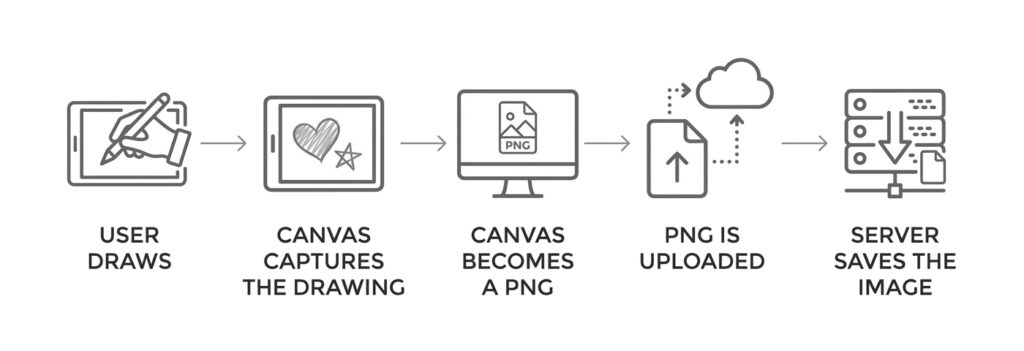
User draws → Canvas captures the drawing →
Canvas becomes a PNG → PNG is uploaded →
Server saves the image
That’s really all there is to it.
The browser handles the drawing, while the server handles storing the resulting image.
For this example, I’ll show both a PHP backend and a Python Flask backend.
The Frontend
We’ll start with a simple HTML page containing a canvas and two buttons.
One button clears the signature pad, and the other submits the signature.
<!DOCTYPE html>
<html lang="en">
<head>
    <meta charset="UTF-8">
    <meta name="viewport" content="width=device-width, initial-scale=1.0">
    <title>Universal Signature Pad</title>

    <style>
        .pad-container {
            width: 100%;
            max-width: 450px;
            margin: 20px auto;
            text-align: center;
            font-family: sans-serif;
        }

        canvas {
            border: 2px dashed #ccc;
            background: #fff;
            cursor: crosshair;
            touch-action: none;
        }

        .controls {
            margin-top: 15px;
        }

        button {
            padding: 12px 24px;
            margin: 0 5px;
            cursor: pointer;
            font-size: 16px;
            border-radius: 4px;
            border: 1px solid #ccc;
        }

        #upload-btn {
            background: #007BFF;
            color: white;
            border: none;
        }
    </style>
</head>

<body>

<div class="pad-container">
    <h3>Sign Your Name</h3>

    <canvas id="signature-pad" width="400" height="250"></canvas>

    <div class="controls">
        <button id="clear-btn">Clear</button>
        <button id="upload-btn">Submit</button>
    </div>
</div>

<script>
    const canvas = document.getElementById('signature-pad');
    const ctx = canvas.getContext('2d');

    const clearBtn = document.getElementById('clear-btn');
    const uploadBtn = document.getElementById('upload-btn');

    let isDrawing = false;

    // Brush setup
    ctx.strokeStyle = '#111111';
    ctx.lineWidth = 3;
    ctx.lineCap = 'round';
    ctx.lineJoin = 'round';

    function getXY(e) {
        const rect = canvas.getBoundingClientRect();

        const clientX = e.touches
            ? e.touches[0].clientX
            : e.clientX;

        const clientY = e.touches
            ? e.touches[0].clientY
            : e.clientY;

        return {
            x: clientX - rect.left,
            y: clientY - rect.top
        };
    }

    function startDrawing(e) {
        isDrawing = true;

        const coords = getXY(e);

        ctx.beginPath();
        ctx.moveTo(coords.x, coords.y);

        if (e.touches) {
            e.preventDefault();
        }
    }

    function draw(e) {
        if (!isDrawing) return;

        const coords = getXY(e);

        ctx.lineTo(coords.x, coords.y);
        ctx.stroke();

        if (e.touches) {
            e.preventDefault();
        }
    }

    function stopDrawing() {
        isDrawing = false;
    }

    // Desktop mouse events
    canvas.addEventListener('mousedown', startDrawing);
    canvas.addEventListener('mousemove', draw);
    window.addEventListener('mouseup', stopDrawing);

    // Mobile touch events
    canvas.addEventListener(
        'touchstart',
        startDrawing,
        { passive: false }
    );

    canvas.addEventListener(
        'touchmove',
        draw,
        { passive: false }
    );

    window.addEventListener('touchend', stopDrawing);

    // Clear the signature
    clearBtn.addEventListener('click', () => {
        ctx.clearRect(
            0,
            0,
            canvas.width,
            canvas.height
        );
    });

    // Upload the signature
    uploadBtn.addEventListener('click', () => {

        canvas.toBlob((blob) => {

            if (!blob) {
                alert("Canvas is empty.");
                return;
            }

            const formData = new FormData();

            formData.append(
                'signature',
                blob,
                'sig_' + Date.now() + '.png'
            );

            fetch('upload.php', {
                method: 'POST',
                body: formData
            })
            .then(res => res.json())
            .then(data => {

                if (data.success) {
                    alert(
                        'Uploaded! Saved as: ' +
                        data.file
                    );
                } else {
                    alert(
                        'Upload failed: ' +
                        data.error
                    );
                }

            })
            .catch(err => {
                console.error('Upload Error:', err);
            });

        }, 'image/png');
    });
</script>

</body>
</html>
Creating the Drawing Surface
The important part of the HTML is the canvas:
<canvas id="signature-pad" width="400" height="250"></canvas>
The canvas gives us a rectangular area that JavaScript can draw into.
The width and height attributes define the canvas’s internal drawing dimensions. CSS can then control how the canvas is displayed on the page.
We obtain the canvas and its 2D drawing context with:
const canvas = document.getElementById('signature-pad');
const ctx = canvas.getContext('2d');
The ctx object gives us the methods needed to draw on the canvas.
Drawing the Signature
The basic drawing process is straightforward.
When the user presses the mouse button or touches the screen, we begin a path:
ctx.beginPath();
ctx.moveTo(coords.x, coords.y);
As the pointer moves, we draw lines between the previous position and the new position:
ctx.lineTo(coords.x, coords.y);
ctx.stroke();
By doing this repeatedly while the user moves their finger or mouse, we create what appears to be a continuous handwritten signature.
The brush itself is configured with:
ctx.strokeStyle = '#111111';
ctx.lineWidth = 3;
ctx.lineCap = 'round';
ctx.lineJoin = 'round';
The rounded line ends and joins make the signature look considerably more natural than using square-ended lines.
Mouse and Touch Input
One of the interesting parts of this example is that it handles both desktop and mobile input.
On a desktop, we listen for mouse events:
mousedown
mousemove
mouseup
On a mobile device, we listen for touch events:
touchstart
touchmove
touchend
The touch-action: none CSS property is also important:
canvas {
    touch-action: none;
}
Without it, a browser may interpret a finger movement on the canvas as a request to scroll the page instead of drawing a signature.
The getXY() function converts the mouse or touch position into coordinates relative to the canvas itself.
Turning the Canvas Into an Image
Once the user clicks Submit, we need to turn the drawing into something that can be sent to a server.
That’s where toBlob() comes in:
canvas.toBlob((blob) => {
    ...
}, 'image/png');
The browser creates a PNG image from the canvas and gives us a Blob containing the binary image data.
We then place that blob into a FormData object:
const formData = new FormData();

formData.append(
    'signature',
    blob,
    'sig_' + Date.now() + '.png'
);
The signature can now be sent to the server with a normal HTTP POST request:
fetch('upload.php', {
    method: 'POST',
    body: formData
});
If the site is running over HTTPS, the request is encrypted in transit.
PHP Backend
For a basic PHP implementation, the browser can send the image to an upload.php file.
Here is the complete example:
<?php

header('Content-Type: application/json');

$uploadDir = __DIR__ . '/signatures/';

if (!is_dir($uploadDir)) {
    mkdir($uploadDir, 0755, true);
}

if ($_SERVER['REQUEST_METHOD'] === 'POST' &&
    isset($_FILES['signature'])) {

    $file = $_FILES['signature'];

    // Check the actual uploaded file type.
    $fileType = mime_content_type($file['tmp_name']);

    if ($fileType !== 'image/png') {
        echo json_encode([
            'success' => false,
            'error' => 'Invalid image format.'
        ]);

        exit;
    }

    // Generate our own filename.
    $safeName =
        'sig_' .
        bin2hex(random_bytes(8)) .
        '.png';

    $targetPath = $uploadDir . $safeName;

    if (move_uploaded_file(
        $file['tmp_name'],
        $targetPath
    )) {

        echo json_encode([
            'success' => true,
            'file' => $safeName
        ]);

    } else {

        echo json_encode([
            'success' => false,
            'error' => 'Failed to save file.'
        ]);
    }

} else {

    echo json_encode([
        'success' => false,
        'error' => 'Invalid request data.'
    ]);
}

?>
Notice that the PHP code doesn’t simply trust the filename supplied by the browser.
It creates its own filename using random_bytes().
It also checks the uploaded file’s MIME type before saving it.
For a real production application, additional validation should be added, including upload size limits, authentication and authorization, appropriate storage permissions, and stronger image validation.
Flask Backend
If Python is your preferred environment, the same basic idea can be implemented with Flask.
import os
import uuid

from flask import Flask, request, jsonify

app = Flask(__name__)

UPLOAD_FOLDER = './signatures'
os.makedirs(UPLOAD_FOLDER, exist_ok=True)


@app.route('/upload-signature', methods=['POST'])
def upload_signature():

    if 'signature' not in request.files:
        return jsonify({
            'success': False,
            'error': 'No file element received'
        }), 400

    file = request.files['signature']

    if file.mimetype != 'image/png':
        return jsonify({
            'success': False,
            'error': 'Invalid file format'
        }), 400

    filename = f"sig_{uuid.uuid4().hex}.png"

    target_path = os.path.join(
        UPLOAD_FOLDER,
        filename
    )

    file.save(target_path)

    return jsonify({
        'success': True,
        'file': filename
    })


if __name__ == '__main__':
    app.run(ssl_context='adhoc')
The frontend would need to change the fetch() URL from:
fetch('upload.php', {
to something like:
fetch('/upload-signature', {
when using the Flask API.
The ssl_context='adhoc' option is useful for local HTTPS testing. It creates a temporary development certificate.
It is NOT intended to be your production Flask deployment.
For a public application, Flask would normally run behind a production web server or reverse proxy that handles HTTPS.
A Note About Security
This example is intentionally simple.
An uploaded signature is still an uploaded file, and uploads should never be treated as automatically trustworthy.
A production application should consider things such as:
- File size limits.
- Authentication and authorization.
- Server-side image validation.
- Safe storage locations.
- Access controls.
- HTTPS.
- Rate limiting.
- Protection against users uploading files other than the intended image format.
You should also think carefully about whether signatures should be publicly accessible by filename. Depending on what the signature is being used for, the uploaded image may contain sensitive information.
Why Build It Yourself?
There are plenty of JavaScript libraries that can create signature pads.
For a real application, using an established library can make sense. Libraries can provide smoother strokes, pressure sensitivity, better touch handling, undo functionality, vector output, and other features.
But sometimes the best way to understand a technology is to remove the abstraction.
- A signature pad isn’t magic.
- At its most basic level, we’re simply drawing on a canvas.
- The canvas gives us image data.
- JavaScript gives us a way to capture the user’s input.
toBlob()gives us an image we can send over HTTP.- And the server saves it.
Once you understand those pieces, you can build something much more sophisticated on top of them.
What’s Next?
This example deliberately keeps things simple.
There are several things I would change or improve for a more modern implementation, including using Pointer Events instead of maintaining separate mouse and touch event handlers, handling high-DPI displays, improving the drawing algorithm, adding better server-side validation, and potentially storing signatures in a database or object storage system instead of directly on the web server.
Those are topics for another article.
For now, this is enough to demonstrate the basic idea:
Draw it. Convert it. Upload it. Save it.
And no, you don’t necessarily need to pay somebody a fortune just to put a box on a web page where someone can draw their name.
Leave a Reply